Abstract
Scribe is an offline editor for LaTeX and Python, for whatever you are writing: a paper, a thesis, notes for a course, a lab report or a talk. Run the notebook and its figures and numbers land in the PDF, already up to date. It takes notes with mathematics during a lecture, reads and highlights the papers you cite, and checks your work before you hand it in. It draws TikZ pictures with the mouse, tracks changes for your co-authors, and, if you want one, brings an assistant that runs on the model of your choice. It runs on your own computer, with or without an internet connection, and it costs nothing.1 No paid tier, no trial, and no account to make.
Introduction
Scientific writing is rarely just text. A thesis chapter, a paper or a report has figures that come out of a script and numbers that come out of an experiment, and the two drift apart the moment one of them changes. Scribe keeps them together: the notebook and the document live in one project, and a compile brings every figure and every number up to date.3 Only notebooks that changed since they last ran are run again; everything else is reused, so a compile stays quick.
Everything happens on your computer. There is no account, no upload and no compile queue, and it works the same on a train with no signal. Start from a template for an article, a thesis, an IEEE or ACM paper, slides or lecture notes, or bring a project over from Overleaf.
The sections below show what that looks like, recorded from the app itself.
Notebooks feed the document
Figures are notebook cells marked [figure: loss]; numbers leave the notebook with nbval("acc", 0.96, err=0.003). In the LaTeX, \nbfig{loss} and \nbval{acc} bring them in, typeset with their uncertainty. Change the code, and the next compile reruns only what went stale.
Notes with mathematics
Notes are Markdown files whose maths renders as you write, fast enough for a lecture. Inside a formula, // becomes a fraction, ;a becomes α and -> an arrow; Tab steps through the blanks and out again. Notes link to each other with [[name]], collect #tags, and gather every definition and theorem for revision.
Try it
The note on the left takes the same shortcuts as Scribe's notes. Type $ for a formula and $ again straight away for a displayed one; inside a formula, // makes a fraction, ;a an α, -> an arrow, and Tab moves on to the next blank and out.
Reading the papers you cite
Attach a reference's PDF and read it in Scribe. Select a sentence and press Highlight: the quote goes into your note on that paper, with a link that opens the PDF at its page.
Revision
A line starting Q: with its answer on a line starting A: is a card. Review asks the cards that are due and spaces them out by how well you knew them; they also export to Anki.
Tables without the ampersands
Put the cursor in a table and edit it as a grid: set each column's alignment, add rows and columns, or paste a block straight from a spreadsheet. Scribe writes back aligned LaTeX, keeping booktabs rules and \multicolumn.
When it doesn't compile?
Errors come with a line in plain words: which package a command needs, where the unclosed brace is, which citation has no entry. Turn on Compile as you type and the PDF follows your writing.
TikZ, drawn and written
Put the cursor in a tikzpicture and press ⌥⌘K: the picture is compiled on its own, with your preamble, and drawn beside the source in about half a second, again after every edit. Drag a node or a point and its coordinates change in the source. Draw lines, arrows, curves, rectangles, circles, nodes and text on a grid; a line between two nodes is written (a) -- (b). A style bar sets colour, fill, line, arrow tips and font. Export as PDF, SVG or PNG.
The source stays the one truth: every change is a plain edit to the TikZ, and ⌘Z undoes it.
An assistant, with your own model
Claude, GPT, Gemini, any OpenAI-compatible service, or a model running on your own computer with Ollama: you choose, with your own key, kept in the system keychain. Ask about the paper in a side panel; it knows the outline, the section you are in and your bibliography. Select a paragraph and have it improved, shortened, corrected or made more formal, and see the change word by word before it goes in. A compile error can be fixed from the Problems list, and grey suggestions as you type are there if you turn them on.
Nothing is sent until you set a provider, and each request sends only what it needs.
Track changes, comments and revisions
With Track Changes on, what you type and delete is marked with your initials, as the standard changes package writes it. The marks live in the source, so they show in colour in the PDF, travel with git, and work for co-authors in any editor, Overleaf included. Comments sit in the margin. The Review panel lists every change with Accept and Reject.
For a revision, compare the paper with an earlier commit or saved version and latexdiff marks what changed, in the PDF; a letter to the reviewers starts from a template, with changed text quoted from that PDF.
Made to be looked at all day
Eleven themes, among them Gruvbox, Solarized, Nord, Catppuccin, GitHub and Tokyo Night, or follow the system's light and dark. Make your own in a theme editor, any accent colour on any theme. Editor fonts with or without ligatures, line height, interface size. The PDF can be shown light on dark with its figures kept in colour, and focus mode leaves only the text, centred, with today's word count.
Start from a template
New Project offers these, each a complete project that compiles as it is. Figure 11 shows their first pages, compiled by Scribe; open one to see the whole PDF.
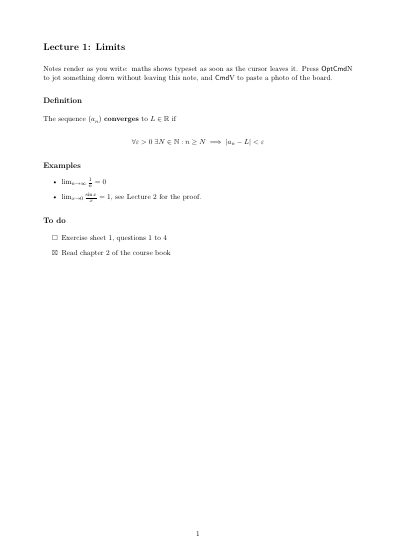 (a) Lecture notes
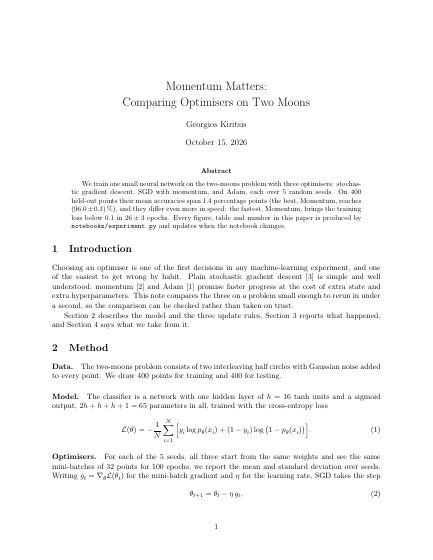 (b) Article with a notebook
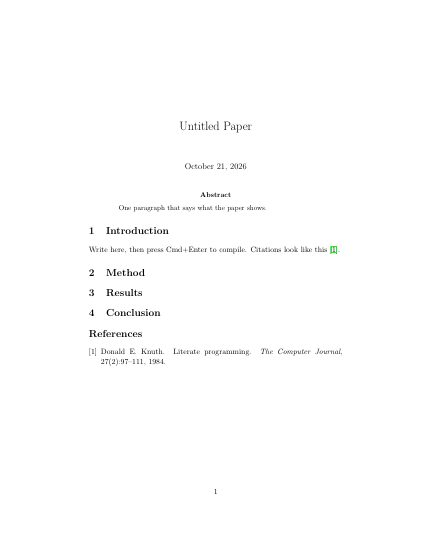 (c) Plain article
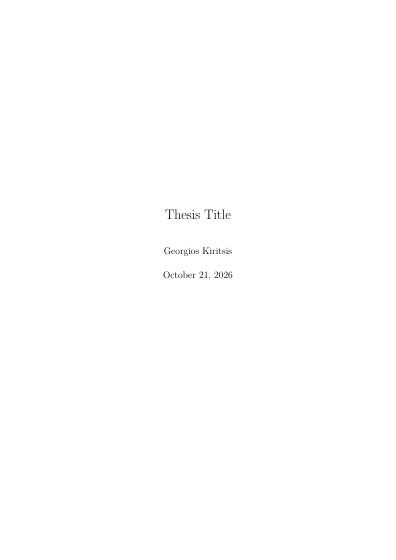 (d) Thesis
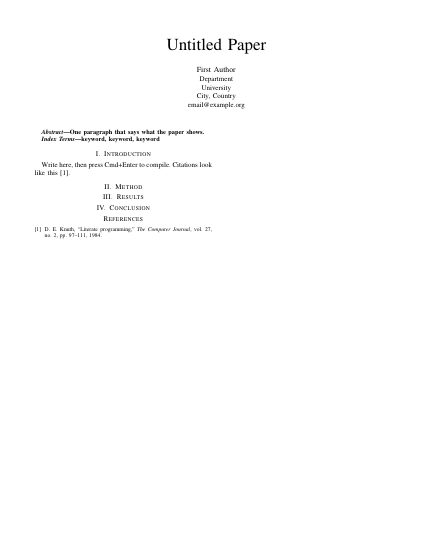 (e) IEEE conference paper
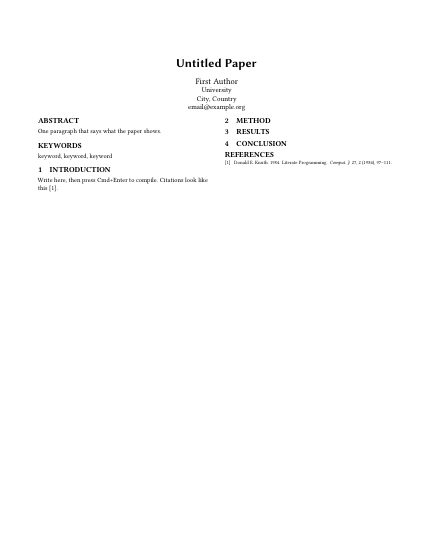 (f) ACM conference paper
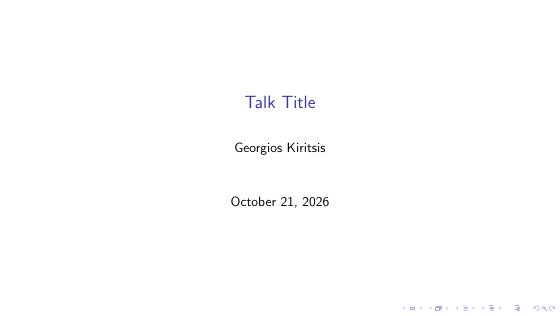 (g) Slides
Everything else
The rest of Scribe, briefly, in Table 1.4 Tables here are set the way the booktabs package sets them: three horizontal rules and no vertical ones.
| Feature | What it does |
|---|---|
| Writing checks | Eleven common slips underlined, each with a fix: ~ before \ref, straight quotes, $$, a repeated word. |
| Hover previews | Over \ref, the equation typeset or the figure drawn; over \cite, the paper. |
| Snippets | fig, tab, eq and Tab; your own too, or imported from VS Code. |
| Equation editor | Type maths as it looks, with a keyboard of symbols; it writes back LaTeX. |
| Version history | Every save keeps a version; see what changed and restore it, no git needed. |
| Check before submitting | Missing citations and labels, unreferenced figures, stale results, what arXiv would reject. |
| Zotero | \cite{ completes from your library and adds the entry to the bibliography. |
| Import from Overleaf | Open a project from its zip download or git link. |
| Templates | An article with a notebook, a thesis, IEEE and ACM papers, slides, lecture notes. |
| LaTeX in one click | No TeX installed? Scribe fetches Tectonic, about 20 MB. |
| DOI and arXiv | Add a reference by its DOI or arXiv number. |
| Sketches | Draw a diagram into a note, with pen pressure on a tablet. |
| Code in notes | Fenced code highlighted in its language, with a copy button. |
| SyncTeX | Double-click the PDF to reach its source, or highlight text there to find it. |
| Export for submission | One plain-LaTeX zip a journal can compile, with every value written in. |
| Updates | A new version is offered when it's out, and installs itself. |
| Git, terminal, Vim | A git panel, a real terminal, and Vim keys if you want them. |
Compared with Overleaf
Overleaf is very good at what it is for: writing together, in a browser, from anywhere. Scribe is for writing on your own computer, with your code next to your text and nothing in between. Table 2 puts them side by side, with Overleaf's free plan as it stood in October 2026.
| Scribe | Overleaf, free plan | |
|---|---|---|
| Price | Free, every feature | Free; paid plans from $98 a year (students) or $199 (Standard) |
| Time allowed per compile | No limit: it runs on your computer | 10 seconds |
| Without an internet connection | Works | Doesn't: it runs in the browser |
| History | A version at every save, kept | The last 24 hours |
| Collaborators | Through git | One per project, editing live |
| Git | Built in | Paid plans |
| Python figures and numbers in the text | Yes | No |
| Notes with maths, revision cards | Yes | No |
| Nothing to install | No, it's an app | Yes |
Under the hood
Scribe is a native desktop app: a Rust core with a TypeScript interface, built on Tauri 2. The whole app is about 13 MB. Nothing runs on a server, and your work stays plain files in a folder you choose.
- Rust core.
- Files, compiling, notebooks, git and the terminal run in Rust. Every path is checked to stay inside the project, and saves are atomic, so a crash never leaves half a file.
- Vim keys.
- Normal, insert and visual modes in the editor and in notebook cells, with
:w,:qand:wq. Absolute or relative line numbers, multiple cursors, rectangular selection. - The editor.
- CodeMirror 6, with completion that knows your labels, citations, figures and notebook values, project-wide search, and the macOS spell checker.
- TeX.
- Tectonic, or TeX Live through
latexmk. SyncTeX works both ways between source and PDF; the build goes tobuild/, out of your way. - PDF and maths.
- pdf.js with a selectable text layer, so text in the PDF can be found in the source. KaTeX typesets formulas in notes and in the live preview.
- Python.
- Notebooks are plain
.pyfiles with# %%cells, or.ipynb. A kernel per project keeps state between cells; figures are saved as vector PDF. - Git and a terminal.
- Commit, push and diff from a panel, and a real terminal running your own shell on a pseudo-terminal.
- Offline and private.
- Everything works without a connection. No account, no telemetry; the network is used only when you ask: looking up a DOI or arXiv ID, installing Tectonic, fetching a TeX package for the first time, or talking to the AI provider you set up.
Remark 1. On an Apple M5 Mac with TeX Live, the four-page example paper in these demos, with two figures, a table and a bibliography, compiles in 1.4 seconds from scratch and in half a second after an edit.
# notebooks/experiment.py
# %% [figure: loss]
fig, ax = plt.subplots()
ax.plot(epochs, loss)
nbval("acc", 0.960, err=0.003, unit=r"\percent")

% main.tex
\nbfig{loss}
Accuracy reaches \nbval{acc}. % → 96.0 ± 0.3 %| Keys | Does | Keys | Does |
|---|---|---|---|
| ⌘↵ | Compile | ⇧⌘P | Every command, by name |
| ⇧⌘↵ | Run the notebooks | ⌘P | Go to a file |
| ⇧↵ | Run a cell | ⇧⌘F | Search the project |
| ⌥⌘K | Preview TikZ | ⌥⌘E | Equation editor |
| ⌥⌘A | The assistant | ⌥⌘I | Edit with AI |
| ⇧⌘E | Track changes | ⌥⌘M | Add a comment |
| ⌥⌘F | Focus mode | ⌥⌘D | Sketch |
| ⌥⌘N | Quick note | ⌥⌘T | Today's note |
Questions
Set out the way Scribe sets revision cards.
Q: Is it really free? What's the catch?
A: There isn't one. Scribe runs on your computer, so it costs nothing to keep going, and it will stay free for everyone.
Q: Does it work without internet?
A: Yes. Writing, compiling, notebooks and notes all work offline. Only looking up a reference by DOI, and fetching a TeX package the first time it's used, need a connection.
Q: Do I need to install LaTeX first?
A: No. If none is found, one click installs Tectonic, about 20 MB. If you already have TeX Live, Scribe uses it.
Q: Do I need Python?
A: Only for notebooks. Papers, a thesis, notes and slides need nothing but LaTeX.
Q: Can I bring my Overleaf projects?
A: Yes: open the zip from Overleaf's Download menu, or paste the project's git link.
Q: Can I write with other people?
A: Through git, with commit, pull and push in a panel, and with tracked changes and comments that travel with the files. For writing together live, in the same document at the same time, Overleaf is the better tool, and Scribe opens its projects whenever you want to carry on offline.
Q: Where do my files live?
A: In a folder you choose, as plain .tex, .bib, .py and .md files. Nothing is locked inside Scribe.
Q: Which systems does it run on?
A: macOS, Windows and Linux; see Getting Scribe. Each release has installers for all three, and Scribe updates itself.
Q: Does the assistant send my paper anywhere?
A: Only if you set one up, and only to the provider you pick, with your own key. Each request sends what it needs, and the panel says what that is. With Ollama the model runs on your computer and nothing leaves it.
Q: Will my co-authors see my tracked changes?
A: Yes. The marks are the changes package's commands in the .tex, so they compile in colour on Overleaf or any TeX installation, and travel with git.
Q: Is it open source?
A: Yes, under the MIT licence. The code, the releases and the issues are on GitHub.
Why it exists
I wrote Scribe after finishing my thesis. While writing the papers that followed, I found that the tools available didn't suit the way I work, so I decided to build my own, and to give it away.
Georgios Kiritsis
AGetting Scribe
Scribe is free on every platform. Pick yours:
macOS
Apple silicon and Intel. A .dmg: open it and drag Scribe to Applications. Apple hasn't notarized it yet, so the first time macOS says it can't verify Scribe: press Done, then Open Anyway in System Settings > Privacy & Security.
Linux
An .AppImage that runs anywhere, and packages for Debian, Ubuntu and Fedora.
- Install Scribe, open it, and start a project from a template, or import one from Overleaf.
- If there is no LaTeX on your computer, press Install LaTeX. Python is only needed for notebooks.
Free for everyone, forever. When a new version is out, Scribe offers to install it.
Scribe is open source, under the MIT licence. The code, every release and the issue tracker are on GitHub; a star there helps other people find it.
BCiting Scribe
If Scribe helped with your work, citing it helps other people find it. Listing 2 is a BibTeX entry for \cite{kiritsis2026scribe}.
@misc{kiritsis2026scribe,
  author       = {Kiritsis, Georgios},
  title        = {Scribe: an offline editor for {LaTeX} and {Python}},
  year         = {2026},
  note         = {Version 1.2.3},
  howpublished = {\url{https://scribe.georgekiritsis.com/}}
}CContributing
Scribe is open source, under the MIT licence, and made better by the people who use it. If something is missing, broken or awkward, say so in an issue; if you can fix it, fork the repository and send a pull request. Listing 3 gets the source running on your computer; the README lists what macOS, Windows and Linux need first.
git clone https://github.com/Scribe-IDE/Scribe.git
cd Scribe
npm install
npm run tauri dev       # the app, reloading as you edit
cd src-tauri && cargo test  # the back end's tests
Good places to start, each a self-contained file: a new project template (src/templates.ts), a theme, which is only a list of colours (src/themes.ts), a writing check with its fix (src/lint.ts), or a snippet (src/snippets.ts). The front end is TypeScript without a framework and the back end is Rust, so a first change is usually small and easy to read.